
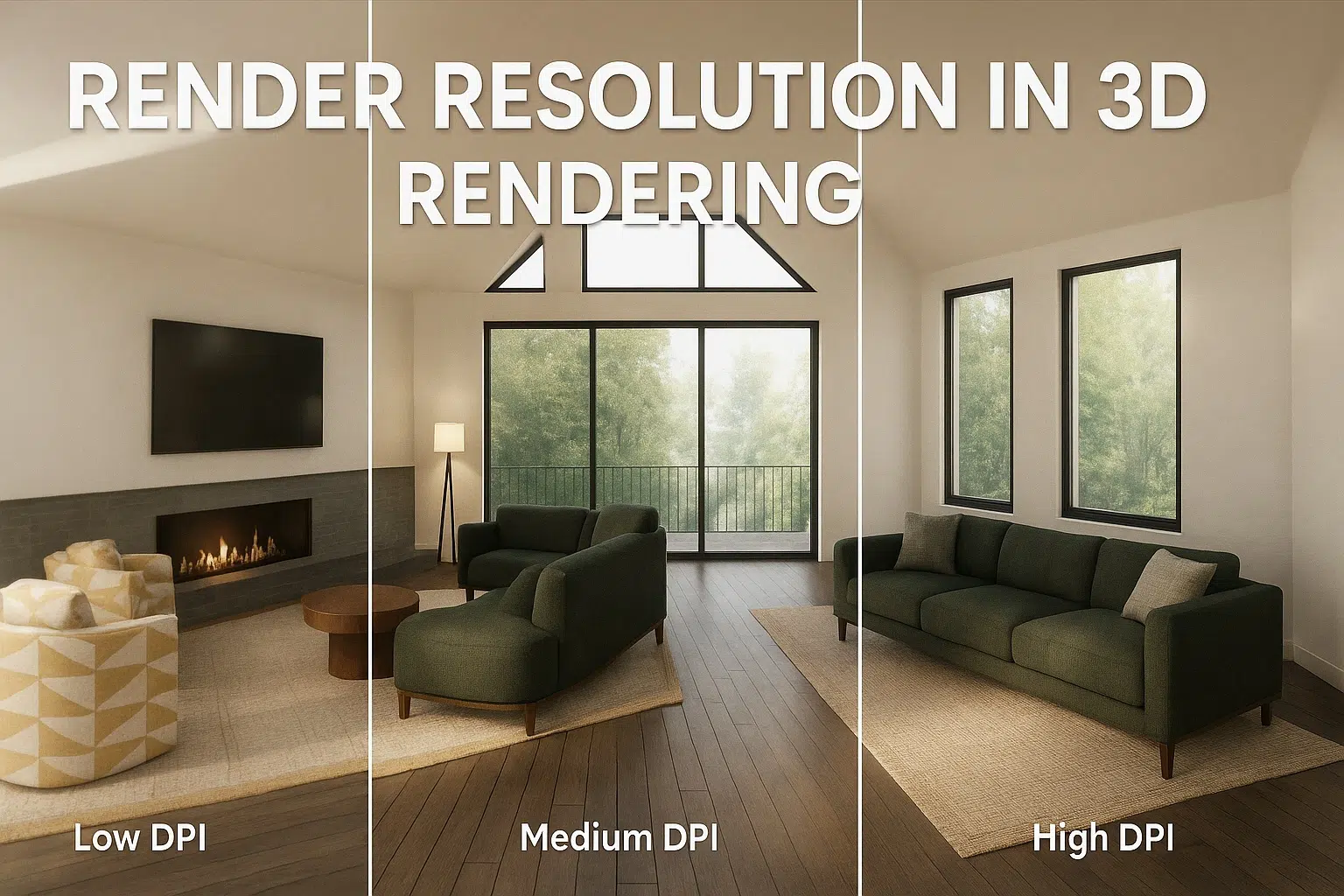
Render Resolution in 3D Rendering: What It Is and How to Choose the Right One
Ever received a stunning render—only to find it looks pixelated in print or painfully slow to load on your website? That’s a common sign of getting render resolution wrong. Whether you’re an architect preparing a design presentation, a product marketer building out a catalog, or a 3D artist racing to meet a deadline, the resolution you choose plays a critical role. It can be the difference between a crisp, professional result and a frustrating setback. Yet, resolution is often overlooked until problems arise.
For anyone ordering renders
What Is Render Resolution in 3D Rendering?
Ever received a stunning render—only to find it looks pixelated in print or painfully slow to load on your website? That’s a common sign of getting render resolution wrong. Whether you’re an architect preparing a design presentation, a product marketer building out a catalog, or a 3D artist racing to meet a deadline, the resolution you choose plays a critical role. It can be the difference between a crisp, professional result and a frustrating setback. Yet, resolution is often overlooked until problems arise.
In this guide, we’ll break down what render resolution really means, why it matters, and how to choose the right settings for professional 3D architectural visualization or product rendering, based on your project’s specific goals. Let’s make sure your visuals deliver exactly what they should—on screen and in print..
In 3D rendering, render resolution refers to the number of pixels used to create a digital image, directly impacting the clarity, detail, and overall quality of the final visual output. It’s typically expressed as width × height — for example, 1920×1080 (commonly known as Full HD).
A higher resolution means more pixels, which often results in greater clarity and detail. But it also means longer rendering times and heavier file sizes.
Render Resolution vs. Image Resolution
Render Resolution
While they sound similar, “render resolution” is specifically about the output settings in 3D software. It determines how detailed your final render will be.
Image Resolution
“Image resolution,” especially when referring to print, is often linked to DPI (dots per inch), which defines how densely those pixels are printed.
Why Render Resolution Matters
Getting render resolution right isn’t just about visual quality. It also affects how efficiently your team works, how long renders take, and how well your materials perform across platforms.
1. Clarity and Detail
Higher resolutions produce sharper images, especially important for close-ups, product packaging, or architectural details like textures and lighting.
2. Rendering Time and Performance
A 4K render (3840×2160) can take 4–6 times longer to render than a 1080p one, depending on the complexity of the scene and your hardware. Time matters, especially on tight deadlines.
3. File Size and Storage
Larger images consume more storage and may slow down your website or presentation software. If you’re rendering dozens of images, this adds up quickly.
Common Render Resolutions and Their Use Cases
Choosing the right resolution depends on how and where your render will be used.
Web and Digital Screens
- 1080p (1920×1080): Ideal for websites, online portfolios, and social media.
- 2K or 4K (2560×1440 or 3840×2160): Useful for high-end monitors or detailed product displays.
- 1:1 ratios (e.g., 2048×2048): Popular for Instagram and square web assets.
High-Resolution Prints
- 300 DPI at actual print size is the industry standard for professional prints.
- To print an image at 12×18 inches at 300 DPI, your render resolution should be 3600×5400 pixels.
- Lower DPI (150–200) might be acceptable for large format posters viewed from a distance.
Billboards and Large Displays
- You don’t need crazy-high resolutions.
- A 150 DPI file at billboard size (e.g., 6000×3000 pixels) looks sharp from a distance.
Architectural Rendering
- A3 Prints: 4960×3508 (at 300 DPI)
- Posters or Panels: 7000+ pixels on the long side
- Digital Presentations: 1920×1080 or 2560×1440
Resolution Comparison Specifications
| Medium / Application | Standard Pixel Dimensions | Target DPI / PPI | Primary Use Cases & Visual Intent |
|---|---|---|---|
| Web & Digital Screens | 1920×1080 (FHD) / 2048×2048 (1:1) | Screen (72 DPI) | Websites, e-commerce listings, online portfolios, and square social media assets. |
| High-End Displays | 2560×1440 (2K) / 3840×2160 (4K) | Screen (72–144 DPI) | High-density monitors, full-screen product showcases, and detailed portfolio reels. |
| High-Resolution Prints | 3600×5400 pixels (12×18 in) | 300 DPI | Brochures, marketing collateral, professional lookbooks, and high-gloss magazine pages. |
| Large Format Posters | 4000×6000+ pixels | 150–200 DPI | Posters and wall displays viewed from moderate arm’s-length distances. |
| Billboards & Large Displays | 6000×3000 pixels | 150 DPI | Outdoor billboards and oversized arena displays evaluated from extended viewing distances. |
| Architectural A3 Prints | 4960×3508 pixels | 300 DPI | Client review booklets, planning commission submissions, and physical portfolio spreads. |
| Architectural Posters & Panels | 7000+ pixels (long edge) | 150–300 DPI | Design competition exhibition boards, site panels, and large-format architectural presentations. |
| Architectural Digital Pitches | 1920×1080 or 2560×1440 | Screen (72 DPI) | Interactive digital walkthroughs, boardroom presentations, and web pitch decks. |
How to Choose the Right Render Resolution for Your Project
There’s no one-size-fits-all answer, but here are some guidelines:
1. Define the Final Output
- Online use? Stick with Full HD or 2K.
- High-quality prints? Calculate resolution based on physical dimensions and DPI.
- Client presentations or competitions? Go higher if quality makes the difference.
2. Consider Rendering Time
If you’re working with multiple camera angles, tight timelines, or heavy scenes, rendering at ultra-high resolutions could delay your delivery.
Pro tip: Render at a slightly lower resolution, then upscale using AI tools like Topaz or Photoshop for final tweaks if needed.
3. Match the Medium
- Magazines and brochures: High DPI required
- LED screens or projectors: Resolution may be capped, so ultra-high res isn’t necessary
- Web: Balance quality and file size for faster load times
Render Resolution and Animation
Animations bring a whole new set of challenges.
Frame Rate vs. Resolution
High-resolution animations rendered at 60 FPS require serious processing power and storage. Most walkthroughs or product animations are rendered at:
Web & Social Media Sequences
1080p at 30 FPS for web or social media
High-End Marketing Showcases
4K at 24 FPS for high-end marketing reels
Tip: Always test a few sample frames before committing to final render settings.
DPI vs. Resolution: What’s the Difference?
This is where many people get confused.
DPI (Dots Per Inch)
DPI is for print. It measures how densely pixels will be printed.
Render Resolution
Render resolution is for digital files. It defines the number of pixels in your render.
So, an image with a resolution of 3000×2000 pixels at 300 DPI will print well at 10×6.7 inches. But for web, DPI is irrelevant — screens care about pixel dimensions, not dots per inch.
Best Practices for Managing Render Resolution
Pre-Production Planning
Always define output specs before starting a project
Resource Discipline
Avoid over-rendering unless absolutely necessary
Systematic Asset Taxonomy
Use smart naming for resolution variants (e.g., “kitchen_view1_4K.jpg”)
Efficient Compression & Archival
Archive large files efficiently using compression (TIFF, EXR, or layered PSD)
Real-Time Engine Verification
Use real-time preview tools in V-Ray, Corona, or Blender to test before final render
FAQs
What is the best render resolution?
It depends on the final output. For web, 1920×1080 is enough. For large prints, go as high as 6000+ pixels wide.
Does higher resolution mean better quality?
Not always. Higher resolution improves detail, but without quality lighting, materials, and rendering technique, it won’t look photorealistic.
How does render resolution affect time?
Significantly. Doubling resolution can quadruple render times, depending on the engine and scene complexity.
What resolution is best for architectural presentations?
For prints: 4960×3508 or higher. For digital: 2560×1440 is usually sufficient.
Final Thoughts
Choosing the right render resolution isn’t just a technical decision — it’s a strategic one.
Get it wrong, and you risk blurry prints, sluggish animations, or missed deadlines. Get it right, and your work shines exactly as intended — whether it’s projected in a boardroom, featured in a glossy catalog, or published online.
At 7CGI, we help professionals get this right every day. Whether you’re preparing a real estate pitch, launching a product, or creating a high-impact animation, our team ensures the render resolution fits the goal — every time.
Need a hand picking the best resolution for your next project? Contact us — we’ll be happy to help.